How to switch themes (Light | Dark | Auto)
Objective: Switch between light or dark themes manually or automatically. Please note that for the moment, the dark settings are not fully implemented, so it is advised to work with the light theme for now.
Access your profile settings
- In the upper right corner click on top of your avatar icon (in the yellow box in the image below). From the drop down menu, select "Profile" (highlighted in yellow).
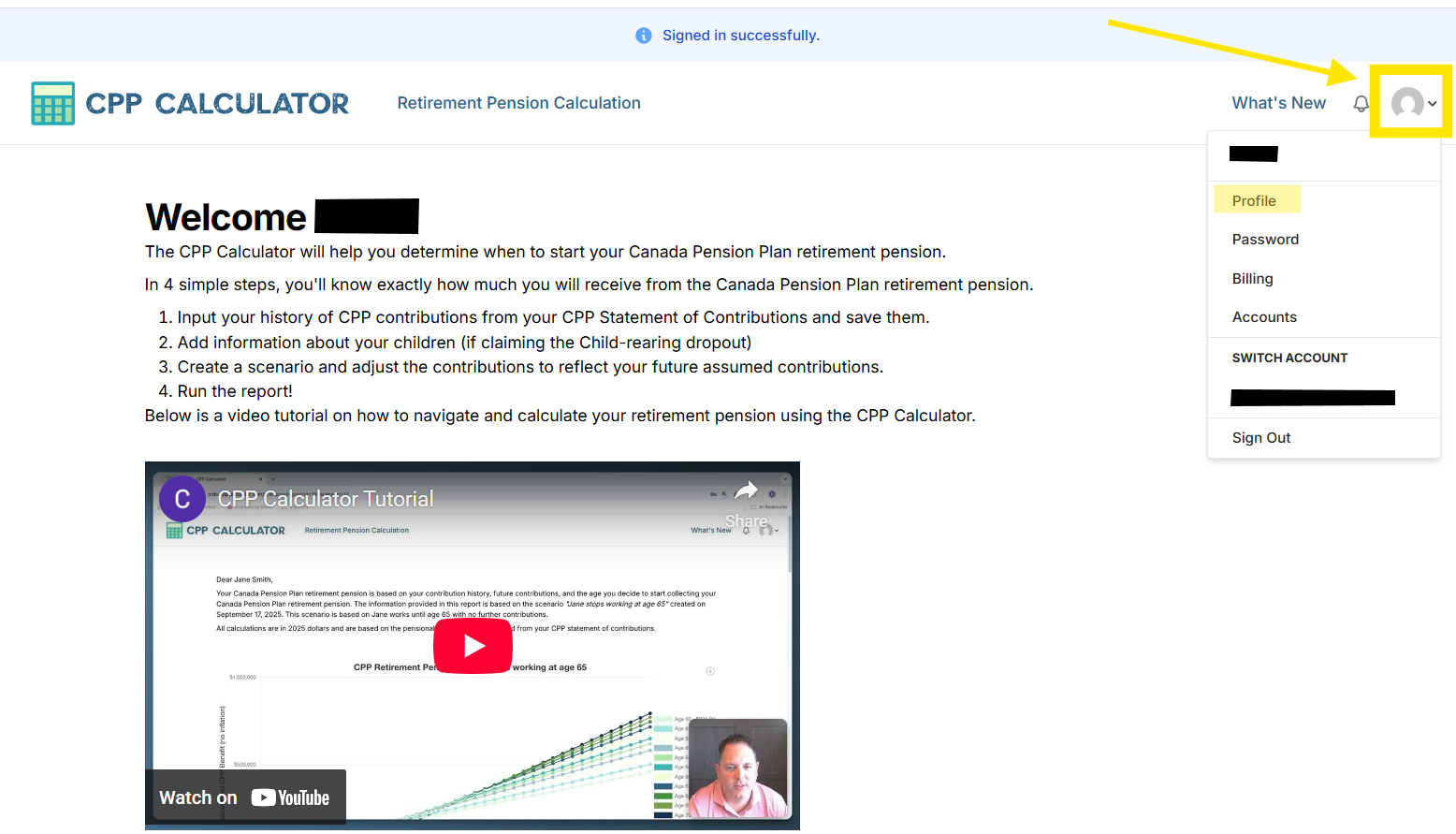
- Click anywhere in yellow box and a drop down menu will appear. See next step.
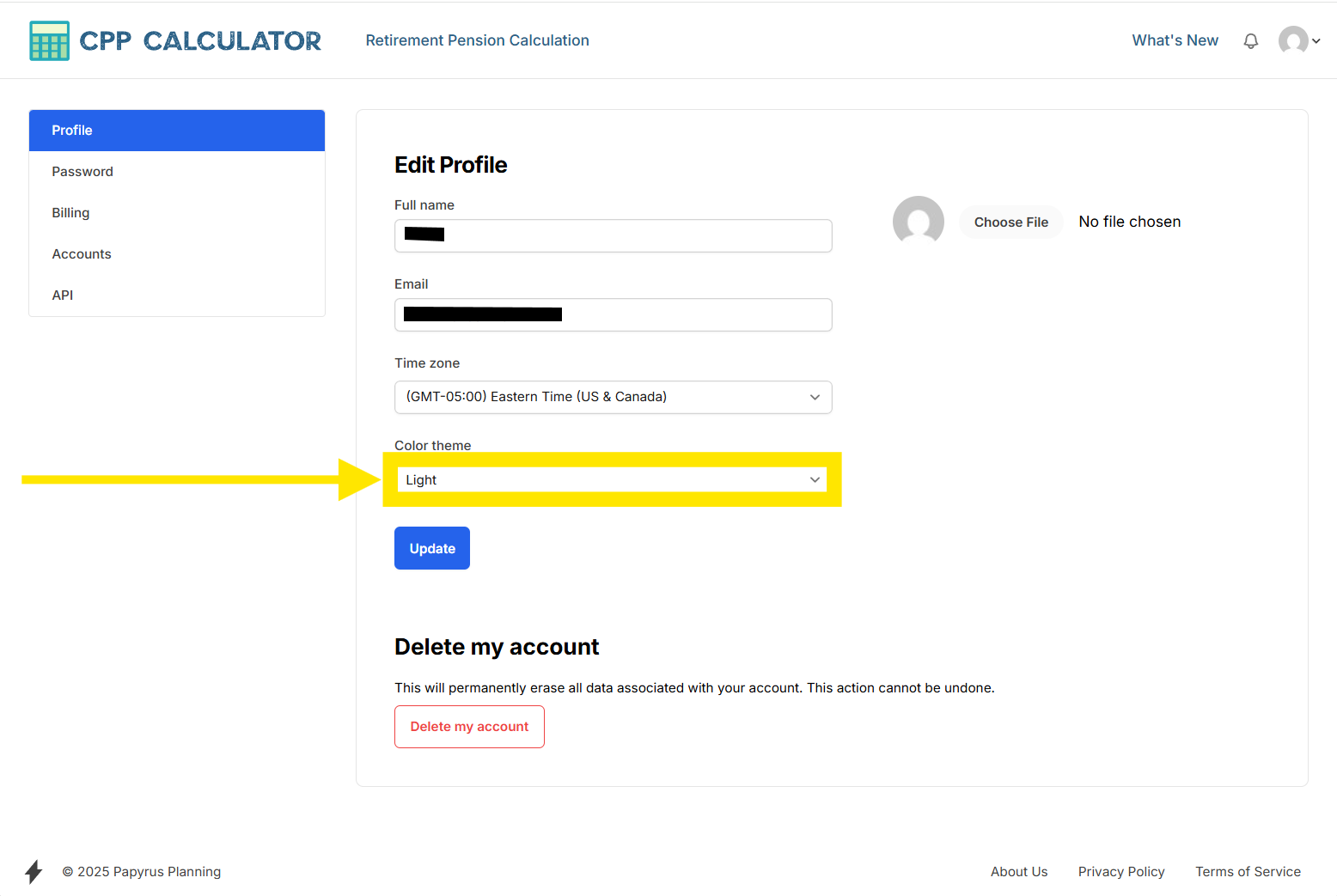
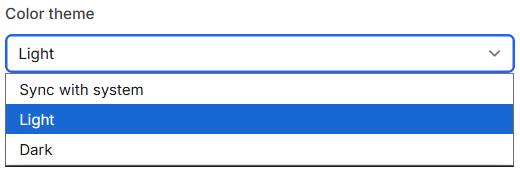
- From the dropdown menu, select your preferred theme.
Nuance
“Sync with system” means the CPP Calculator will automatically match whatever theme your device is using (Light or Dark). You are not choosing a fixed theme inside the calculator—you’re telling it to follow your system setting.
How it works
- If your browser (for example, Chrome) is set to Dark mode, and you select Sync with system in the CPP Calculator, the calculator will display in Dark mode.
- If your operating system (Windows or macOS) is set to automatically switch between Light and Dark (often based on time of day), the CPP Calculator will switch themes at the same time your system switches.
Examples
- Chrome set to Dark mode + Sync with system enabled The CPP Calculator shows Dark mode.
- Windows/macOS scheduled Dark mode at night + Sync with system enabled The CPP Calculator switches to Dark mode at night and back to Light mode during the day, automatically.
Note: If you want the CPP Calculator to stay in one theme all the time, choose Light or Dark instead of Sync with system.